
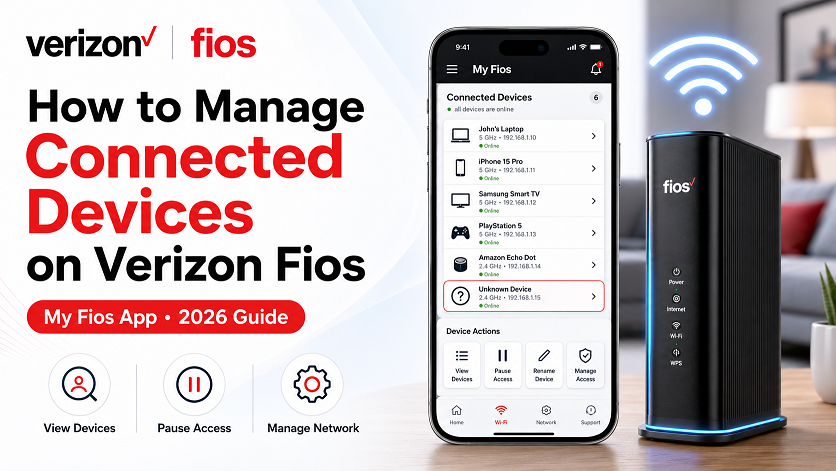
How to Manage Connected Devices on Verizon Fios (My Fios App) — 2026 Guide
Open the My Fios app (or the newer Verizon Home app), go to Internet, and select your network under My Networks. From there, “Connected Devices” shows every device on your WiFi, where you can view details and pause internet access for any individual device. To change your WiFi name or password, select Manage/Edit next to your network and update the SSID and Password fields — this disconnects every device, which then needs to reconnect with the new credentials. Supported routers also let you manage separate primary, guest, and IoT networks through Network Control.
If you’re a Verizon Fios customer trying to figure out who — or what — is using your home WiFi, the tools are there, but Verizon has been gradually rolling features between two apps, which can make “where do I even click” more confusing than it needs to be. This guide covers connected devices, pausing individual devices, managing separate networks for guests and smart home gear, and changing your WiFi credentials, regardless of which app version you currently have.
My Fios App vs. Verizon Home App — Which One Do You Have?
Verizon has historically managed Fios network settings through the My Fios app, which also handles billing, TV, and phone services for Fios customers. More recently, Verizon introduced Verizon Home, a dedicated network management app available to Fios Home Internet, 5G Home Internet, and LTE Home Internet subscribers, which focuses specifically on equipment, connected devices, and network controls.
| Feature | My Fios App | Verizon Home App |
|---|---|---|
| Connected devices list | Yes — under Internet → My Networks | Yes — dedicated Connected Devices section |
| Pause internet for a device | Yes | Yes |
| Change WiFi name/password | Yes — Manage/Edit on network | Yes — SSID & Password section |
| Separate primary/guest/IoT network toggles | Limited — mainly guest network enable/disable | Yes — full Network Control section |
| Billing, TV, phone account management | Yes | No — network-focused only |
| 6GHz band & advanced router settings | Limited | Yes — on supported routers |
Which Should You Use?
If you only need to manage your network — connected devices, pausing, WiFi credentials, guest/IoT networks — Verizon Home offers the more focused, modern interface. If you also need to manage billing, your Fios TV, or phone lines from the same app, the My Fios app remains the all-in-one option. Both apps can be installed side by side; the steps in this guide apply to whichever one shows you an “Internet” or “Connected Devices” section.
How to View All Connected Devices
Open Your App and Sign In
Launch the My Fios app or Verizon Home and sign in with your Verizon credentials.
Go to Internet (My Fios) or the Main Dashboard (Verizon Home)
In My Fios, tap “Internet” from the bottom menu, then select your network under “My Networks.” In Verizon Home, the main screen typically leads directly to your equipment and connected devices.
Open “Connected Devices”
This shows every device currently using your WiFi, including its name, connection type (WiFi or Ethernet), and other details depending on the app version.
Tap a Device for More Details
Selecting an individual device typically shows additional information and gives access to that device’s pause controls.
How to Pause Internet Access for a Specific Device
Immediately stops a single device from using your home WiFi, without affecting any other device on the network. Toggling it back on restores access right away.
Open Connected Devices and Select the Device
From the Connected Devices list, tap the device you want to pause.
Find the Pause Toggle
On the device’s details screen, look for a “Pause” or “Pause Internet” toggle or button.
Turn It On
The device immediately loses access to your home WiFi. It will remain paused until you return to this screen and toggle it back off.
What Pause Does — and Doesn’t — Do
Pausing a device blocks its access to your home WiFi network only. It has no effect on that device’s cellular data or any other WiFi network it might connect to. It also doesn’t remove the device’s stored WiFi password — if you unpause it later, it reconnects automatically without needing the password again. For a device you want permanently off your network regardless of pause status, changing your WiFi password is the more reliable step (see below).
Managing Primary, Guest, and IoT Networks
Depending on your router model, Fios may let you run more than one WiFi network from the same equipment — each with its own name and password.
Guest Network
- In the My Fios app, go to Internet → under My Networks, select your Guest Network.
- Select “Enable Guest WiFi Access” to turn it on.
- Guest devices get internet access on a separate SSID, isolated from your main network’s devices.
IoT Network (Supported Routers)
- In Verizon Home’s Network Control section, you may see options to enable a dedicated IoT network alongside your primary and guest networks.
- An IoT network gives smart plugs, cameras, sensors, and similar devices their own SSID — useful for keeping them separate from your phones and computers, both for organization and as a security boundary.
- Availability depends on your specific router model and current software version.
Why Separate Networks Help
If you have a lot of smart home devices, putting them on a separate guest or IoT network — rather than your main network — means a compromised or misbehaving device has a harder time reaching your computers, phones, or NAS drives. It also makes your main “Connected Devices” list easier to read, since smart plugs and sensors won’t be mixed in with the devices you check daily.
How to Change Your WiFi Name and Password
Go to Internet → My Networks
In the My Fios app, tap Internet, then find the network you want to edit under My Networks. In Verizon Home, look for the SSID & Password section.
Select “Manage” or “Edit”
This opens the network’s editable settings, including its current name and password.
Enter New Credentials and Save
Update the Network Name (SSID) and/or Password fields, then save your changes.
Reconnect Your Devices
Every device on that network disconnects immediately. If you have separate WiFi names for your 2.4GHz and 5GHz bands, note that the password applies to both — any device connected on either band will need to be reconnected with the new credentials.
Comparing ISP Apps?
See how Xfinity’s xFi app and Spectrum’s My Spectrum app handle the same tasks — connected devices, pausing, and password changes.
Understanding SON (Self-Organizing Network)
Most current Fios Home Routers support SON (Self-Organizing Network), enabled by default. SON automatically steers your devices between the 2.4GHz and 5GHz bands, and between access points if you have Fios Wi-Fi Extenders, aiming to give each device the best possible connection at any moment without you having to manually switch networks.
For most households, leaving SON on is the right call — it reduces the number of separate networks you have to think about and generally improves overall WiFi performance. The main scenario where you might consider turning it off is if you have older devices (some smart plugs, older laptops, certain smart TVs) that don’t handle automatic band-switching gracefully and repeatedly drop their connection. In that case, splitting your 2.4GHz and 5GHz networks into separate, fixed SSIDs can give those specific devices a more stable — if less automatically optimized — connection.
Common App Issues and Fixes
| Problem | Likely Cause | Fix |
|---|---|---|
| App stuck on a “Get Started” screen, won’t proceed | Known issue in earlier app versions | Update to the latest version of the app — this was addressed in a past update; reinstalling alone may not fix it without updating |
| Devices show “offline” when actually connected | Connected devices list not syncing in real time | Pull down to refresh, restart the app, or restart the device itself to force a fresh connection |
| Pause/unpause toggle doesn’t seem to apply | Temporary sync delay between app and router | Wait a minute and refresh; if it persists, restart your Fios router from the app or by unplugging it for about 30 seconds |
| Can’t find advanced settings shown in this guide | Feature availability varies by router model and app version | Check both My Fios and Verizon Home if you have them installed; for settings not in either app, log into myfiosgateway.com or 192.168.1.1 directly |
| Forgot your router’s admin login | — | Check the label on the back of your Fios router for the default admin username and password |
Frequently Asked Questions
What’s the difference between the My Fios app and the Verizon Home app?
The My Fios app has long been Verizon’s main app for managing your Fios account, including billing, TV, phone, and an Internet section with WiFi settings and connected devices. Verizon Home is a newer, network-focused app available to Fios Home Internet, 5G Home Internet, and LTE Home Internet customers that centers specifically on equipment details, connected devices, network controls (primary, guest, IoT), SSID and password management, and advanced settings like SON and 6GHz band support. Both apps can show connected devices and let you manage WiFi settings; depending on your account and when you last updated, you may see either interface, but the underlying features largely overlap.
How do I see all devices connected to my Fios network?
In the My Fios app, tap Internet from the bottom menu, then select your network under My Networks. From there, open the Connected Devices section to see a list of every device currently on your WiFi, along with details like connection type (WiFi or Ethernet) and device name. In the Verizon Home app, this information appears under the Connected Devices section on the main network dashboard.
How do I pause internet access for one device?
From the Connected Devices list, select the device you want to pause and use the Pause (or Pause Internet) toggle on its details screen. This immediately stops that device from using your WiFi. To restore access, return to the same screen and toggle it back to resume. The pause only affects that device’s connection to your home network — it doesn’t affect cellular data or other WiFi networks the device might use.
Can I have a separate network for smart home or IoT devices on Fios?
On supported Fios routers, yes. The Verizon Home app’s Network Control section lets you enable or disable separate primary, guest, and IoT networks. An IoT network gives smart home devices (plugs, cameras, sensors) their own SSID, isolated from your main devices — useful both for organization and for limiting what a compromised smart device could potentially access on your network. Availability depends on your specific router model and software version.
Will changing my WiFi password disconnect everything on Fios?
Yes. Changing your WiFi network name or password in the My Fios app or My Verizon disconnects every device currently using that network. If you have separate WiFi names for your 2.4GHz and 5GHz bands and you change the password, you’ll need to reconnect any device in use on either band, since the default password applies to both networks. Each device will need to be reconnected manually using the new credentials.
What is SON (Self-Organizing Network) and should I turn it off?
SON, or Self-Organizing Network, automatically manages your WiFi by steering devices between the 2.4GHz and 5GHz bands and between access points (if you have Fios Wi-Fi Extenders) to get the best connection at any given moment. It’s enabled by default and generally improves overall WiFi performance for most households. The main reason to consider disabling it is if you have older devices that don’t handle automatic band-switching well and repeatedly drop connection — in that case, separating your 2.4GHz and 5GHz networks into distinct SSIDs (turning SON off) can sometimes provide more stable, predictable connections for those specific devices, at the cost of some automatic optimization for everything else.
Why does my Fios app show a device as offline when it’s clearly connected?
This has been reported as a minor, occasional display issue in both the My Fios and Verizon Home apps, where the connected devices list doesn’t immediately reflect a device’s true status. Try pulling down to refresh the device list, closing and reopening the app, or restarting the device itself to force a fresh connection. If the issue is widespread across many devices at once, restarting your Fios router from the app (or unplugging it for about 30 seconds) usually resolves it. Keeping the app updated to the latest version also helps, since this type of sync issue has been addressed in past app updates.