
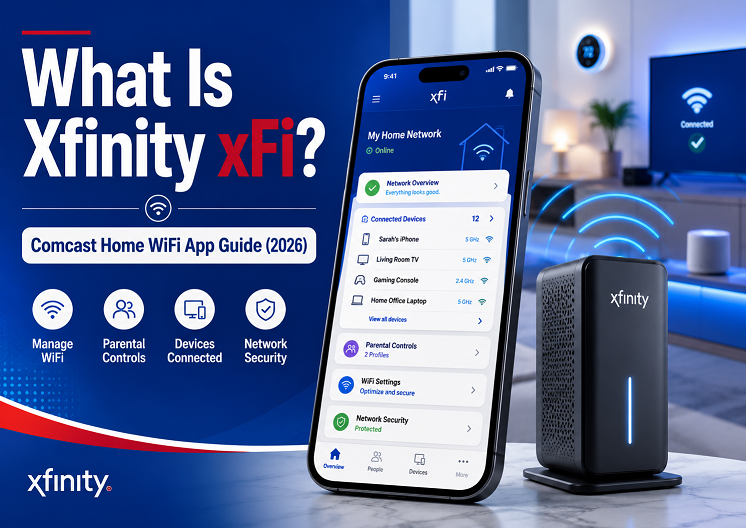
What Is Xfinity xFi? Complete Guide to Comcast’s Home WiFi App (2026)
Xfinity xFi is the free app and online dashboard included with every Xfinity Internet account. It lets you see every device connected to your home WiFi, run speed tests, change your WiFi name and password, set up parental controls and bedtime schedules, and turn on xFi Advanced Security — all at no extra cost. The catch: most of these features only fully unlock if you’re using an Xfinity Gateway in router mode. If you use your own modem and router, xFi still works for billing and account info, but device-level controls are limited. Available on iOS, Android, the web at xfinity.com/xfi, and through the X1/Xfinity TV remote.
If you’re an Xfinity Internet customer, there’s a good chance you’ve seen the name “xFi” — on your bill, in a push notification, or as an app icon you downloaded once and never opened. For a tool that touches nearly every device in your house, xFi is surprisingly under-explained by Comcast itself, which is why most people only discover what it actually does the first time something on their network stops working.
At its core, xFi is Comcast’s answer to a simple problem: home networks have gotten complicated, and most people have no idea what’s actually connected to their WiFi, how fast it’s really running, or how to control any of it without calling support. xFi puts all of that into a single dashboard — your phone, your kid’s tablet, your smart TV, your thermostat, and that one unidentified device that’s been connected since 2023 — and gives you a one-tap way to manage every one of them.
This guide walks through exactly what xFi does, how to set it up, which features are completely free versus which require specific Xfinity hardware, and how to get the most out of it whether you’re a renter with a basic plan or a household running 40+ connected devices.
What Is Xfinity xFi, Exactly?
Xfinity xFi is Comcast’s free digital dashboard for managing your home WiFi network. It’s built into every Xfinity Internet plan — there’s no separate signup, and you don’t pay anything extra just to use it. Think of it as the control panel that sits on top of your router, translating technical network settings into a simple, visual interface anyone can use.
Instead of logging into a router’s admin page through a browser (and remembering an IP address and admin password you probably never set), xFi gives you one app that shows:
- Every device currently connected to your home WiFi, online or offline
- Real-time and historical WiFi speed test results
- Your network’s name (SSID) and password, with the ability to change either
- Parental controls, screen-time schedules, and content filters by family member
- Network security status, including alerts about new or suspicious devices
- Coverage information — including whether you’d benefit from a WiFi extender (xFi Pod)
xFi is accessible three ways: through the xFi mobile app (iOS and Android), through a web browser at xfinity.com/xfi (or via “My Account”), and — if you have Xfinity’s X1 TV service — through a dedicated xFi screen accessible with the voice remote.
One App, Two Different Experiences
The single biggest source of confusion with xFi is that the app looks the same for everyone, but what it can do depends heavily on what hardware is acting as your router. If you’re renting or own an Xfinity Gateway in router mode, you get the full feature set described in this guide. If you supplied your own modem/router, or your Xfinity Gateway is set to Bridge Mode, the app will open fine but several sections — particularly the device list, parental controls, and Advanced Security — will be missing or grayed out.
How to Download and Log In to xFi
Getting started with xFi takes about two minutes, and you don’t need any special setup beyond having an active Xfinity Internet account.
Download the Xfinity App
Search “Xfinity” in the Apple App Store or Google Play Store. The app you want is officially called the Xfinity app — xFi is a section inside it, not a separate download. (Older guides sometimes reference a standalone “xFi” app; Comcast has consolidated this into the main Xfinity app.)
Log In With Your Xfinity ID
Use the same Xfinity ID (email address, mobile number, or username) and password you use for your Comcast bill and email. If you’ve never set one up, choose “Create an Xfinity ID” and follow the prompts — you’ll need your account number or the phone number/address on your account to verify identity.
Let the App Detect Your Gateway
On first login, the app automatically scans for an Xfinity Gateway on your account. If it finds one in router mode, the “Network” or “xFi” tab populates with your connected devices, network name, and WiFi health within a minute or two. If nothing appears, see the troubleshooting section below — it almost always means you’re using non-Xfinity equipment or your gateway is in Bridge Mode.
(Optional) Access xFi on the Web or TV
If you’d rather manage your network from a computer, go to xfinity.com/xfi and log in with the same Xfinity ID. On Xfinity X1 or Flex, press the voice button on your remote and say “xFi” to bring up the network dashboard directly on your TV.
The 7 Core Features of the xFi App
Once xFi is connected to an Xfinity Gateway, here’s what you’ll actually find inside the app — and what each feature is genuinely useful for.
A live list of every device on your network, split into online and offline groups. You can rename each device (so “ESP_3A2F1” becomes “Living Room Smart Plug”), see when it last connected, and pause its internet access with one tap.
A built-in speed test that measures download and upload speed from your gateway. Unlike third-party speed test sites, this one is calibrated against your actual Xfinity plan, so the app can tell you whether you’re getting close to what you’re paying for.
Change your WiFi network name (SSID) and password directly from the app — no need to find a sticker on the back of the router or call support. You can also view your current credentials if you’ve forgotten them.
Turn on a separate WiFi network for visitors with its own name and password. Guest devices get internet access but can’t see or interact with devices on your main network — useful for keeping smart locks, cameras, and computers isolated from people just visiting.
Create a profile for each family member and assign their devices to it. From there you can set content filtering by age tier, turn on Bedtime Mode (automatically pauses internet at set times every night), build up to 30 screen-time schedules per profile, and get real-time alerts when a new device joins the network.
A network-level security layer that runs continuously in the background. It monitors traffic from every connected device, blocks known malicious and phishing sites before they load, and sends a push notification if it detects unusual behavior — like a device suddenly trying to contact a known bad server.
xFi can run a coverage assessment of your home and flag rooms with weak signal. If it identifies dead zones, it will recommend (and, depending on your plan, may provide free) xFi Pods — small mesh WiFi extenders that pair directly with your Xfinity Gateway through the app.
xFi vs Xfinity Gateway vs xFi Complete — What’s Actually Different
This is where most of the confusion happens, because “xFi,” “Xfinity Gateway,” and “xFi Complete” all sound related but mean three different things. Here’s how they break down:
| Term | What It Actually Is | Typical Cost | What You Get |
|---|---|---|---|
| xFi | The free app/dashboard software | $0 — included | Account info and speed test for everyone; full device management, parental controls, and security if paired with an Xfinity Gateway |
| Xfinity Gateway | The physical modem + router hardware unit | Rental fee (varies by plan/region) or one-time purchase | Unlocks the full xFi feature set in router mode; required for xFi Advanced Security, device list, and parental controls |
| xFi Complete | A paid add-on bundle on top of your internet plan | Monthly add-on fee — varies by region and plan | Gateway rental included, removal of the standard data cap in most areas, xFi Advanced Security, and a whole-home coverage guarantee (free xFi Pod if needed after evaluation) |
Add-On Names and Pricing Change Often
Comcast periodically renames and restructures its add-ons by region — what one customer sees as “xFi Complete” on their bill, another may see under a different plan name entirely. The features described above (unlimited data, Gateway rental, Advanced Security, whole-home coverage) are the consistent core of the offer, but the exact name and price can differ. Before adding or removing anything, check the “Plan” or “Add-ons” section of your Xfinity account, or use the chat support option in the Xfinity app to confirm current pricing for your address.
Do You Need an Xfinity Gateway to Use xFi?
To use the basic app — checking your bill, viewing data usage, running a generic speed test — no, any Xfinity Internet connection works. To use the features that make xFi genuinely useful (the device list, parental controls, guest network, and Advanced Security), yes, you need an Xfinity Gateway acting as your router, and it needs to be in router mode rather than bridge mode.
Here’s how the three common setups compare:
| Your Setup | Device List | Parental Controls | Advanced Security | Speed Test |
|---|---|---|---|---|
| Xfinity Gateway — Router Mode | ✅ Full access | ✅ Full access | ✅ Included free | ✅ Yes |
| Xfinity Gateway — Bridge Mode | ❌ Not available | ❌ Not available | ❌ Not available | ✅ Yes |
| Your Own Modem & Router | ❌ Not available | ❌ Not available | ❌ Not available | ⚠️ Limited/general only |
If You Want the Full Feature Set
The only path to unlocking the device list, parental controls, guest WiFi, and xFi Advanced Security is using an Xfinity Gateway in router mode. If you currently own your own router because you wanted to avoid an equipment rental fee, weigh that savings against the value of these features — for households with kids, smart home devices, or shared WiFi passwords, the free Advanced Security alone can be worth switching back to Xfinity’s gateway. There’s also one older model — the Cisco DPC3939 — that’s known not to support the full current xFi feature set even in router mode, so if you’re on very old equipment, an upgrade may be required regardless.
How to Set Up Parental Controls in xFi (Step by Step)
If you’ve never used the “People” section of the app, here’s the fastest way to get parental controls working for your household:
Open “Parental Controls” or “People” in the xFi App
From the main xFi screen, tap the menu and look for “Parental Controls” (sometimes labeled “People” depending on your app version). This is where every family profile lives.
Create a Profile and Assign Devices
Tap “Add a Person” and create a profile for each family member — for example, “Emma” or “Kids – Shared.” Then assign the relevant devices (tablet, phone, gaming console) to that profile. A device can only belong to one profile at a time.
Choose a Content Filter Level
Each profile can be set to an age-appropriate filter tier (such as Young Child, Child, Teen, or no filter for adults). This blocks categories of websites and apps based on the selected level — keep in mind it’s a category-based filter, not a perfect blocklist, so it works best as one layer of a broader approach.
Turn On Bedtime Mode
Within a profile, enable Bedtime Mode and set the days and times you want internet access automatically paused for that person’s devices — for example, 9:00 PM to 7:00 AM on school nights. This applies network-wide to every assigned device at once.
Add Screen-Time Schedules and Alerts
Beyond bedtime, you can create up to 30 additional schedules per profile — homework time, dinner, family activities — each one automatically pausing that profile’s devices. While you’re in this section, turn on real-time alerts for new devices joining your network so you’re notified the moment something unfamiliar connects.
Common xFi Problems and Fixes
| Problem | Likely Cause | Fix |
|---|---|---|
| App shows no devices / blank network screen | Using a non-Xfinity router, or gateway in Bridge Mode | Switch your Xfinity Gateway to router mode, or rent/connect an Xfinity Gateway if using your own equipment |
| A device shows “offline” but is clearly working | App data hasn’t refreshed, or the device uses a randomized MAC address | Pull down to refresh the device list; if it persists, restart the gateway from the app’s “Restart Gateway” option |
| Parental Controls / Advanced Security section is missing | Equipment doesn’t support full xFi features (e.g., very old gateway, Bridge Mode, third-party router) | Confirm your gateway model and mode in account settings; consider upgrading to a current Xfinity Gateway |
| Speed test results much lower than your plan speed | Testing over WiFi at distance, too many active devices, or a coverage gap | Run the test connected via ethernet first to isolate WiFi vs. plan issues; check the coverage map for dead zones |
| App won’t detect gateway after a power outage | Gateway is still rebooting (can take several minutes) | Wait 5–10 minutes after power returns, then reopen the app; if it persists, use the in-app “Restart Gateway” tool |
| Forgot Xfinity ID or password | — | Use the “Forgot password” / “Forgot username” links on the xFi or Xfinity app login screen — recovery is sent to the contact info on file |
Comparing Your ISP’s App to Xfinity?
If your household uses AT&T instead, see how their equivalent tool compares — including device removal, password changes, and parental controls.
Is xFi Worth Using? Pros and Cons
✅ Pros
- Completely free for every Xfinity Internet customer
- One app for billing, usage, and full network management
- Free built-in security (xFi Advanced Security) with a compatible gateway
- Genuinely useful parental controls without third-party software
- Easy device renaming makes a crowded smart home network manageable
- Coverage tools help diagnose dead zones before buying extra hardware
⚠️ Cons
- Most useful features require an Xfinity Gateway — not your own router
- Bridge Mode silently disables device list, controls, and security
- Add-on naming and pricing (xFi Complete, etc.) vary by region and change often
- Parental controls only cover your home WiFi, not cellular data
- Content filters are category-based, not a precise blocklist
Frequently Asked Questions
Is the Xfinity xFi app free?
Yes. The xFi app and the xfinity.com/xfi web dashboard are free for every Xfinity Internet customer, with no separate subscription fee. Some advanced features — particularly xFi Advanced Security and whole-home coverage with xFi Pods — are included at no extra cost only when you use a rented or owned Xfinity Gateway. If you use your own third-party modem and router, the app still works for billing and account information, but device-level management and security tools will be limited or unavailable.
Do I need to rent the Xfinity Gateway to use xFi?
You don’t need it to open the app, but you do need it for the full experience. The xFi app works with any Xfinity Internet plan, but the device list, parental controls, guest WiFi, WiFi name and password changes, and xFi Advanced Security all require an Xfinity Gateway acting as your router. If your gateway is in Bridge Mode, or if you use your own modem and router, most of these network-level features are hidden or disabled, even though the app itself still opens normally.
Can I use the xFi app with my own modem and router?
Partially. The xFi app will still let you log in, view your account, check your data usage, pay your bill, and run a basic speed test. However, the connected-devices dashboard, parental controls, guest network tools, and xFi Advanced Security are tied to the Xfinity Gateway hardware and will not appear if you’re using your own equipment. If those features matter to you, switching to a rented or purchased Xfinity Gateway (in router mode, not bridge mode) is required.
What is xFi Advanced Security and how much does it cost?
xFi Advanced Security is a network-level security feature built into the xFi app that monitors every device on your home WiFi, blocks known malicious sites and phishing attempts, and sends real-time alerts when it detects unusual activity or a new device joining your network. It is included at no additional cost for any customer using an Xfinity Gateway in router mode (not bridge mode). It is not available to customers using a third-party router, and it is one of the features bundled into the higher-tier xFi Complete add-on along with unlimited data and equipment coverage.
How do I see every device connected to my Xfinity WiFi?
Open the xFi app, log in with your Xfinity ID, and tap the home screen — your connected devices appear automatically, usually grouped by online and offline status. Tap any device to rename it, see its connection details, or pause its internet access. If a device you don’t recognize appears, you can pause it immediately from the same screen and investigate before allowing it back on the network. This feature requires an Xfinity Gateway in router mode.
How do I change my WiFi name and password using xFi?
In the xFi app, go to your network settings (often labeled WiFi Settings or Network Name & Password), select your home network, and edit the Network Name (SSID) and Password fields. After saving, every device connected to that network will disconnect and need to be reconnected using the new credentials. It’s a good idea to do this when most devices are nearby so you can reconnect them quickly, and to write down the new password before you save the change.
What’s the difference between xFi and xFi Complete?
xFi is the free app and dashboard included with every Xfinity Internet account. xFi Complete is a paid add-on plan that bundles several things together: an Xfinity Gateway rental, removal of the standard data cap (unlimited data in most areas), xFi Advanced Security, and a guarantee of whole-home WiFi coverage, including a free xFi Pod if your home needs one after a coverage evaluation. In short, xFi is the software everyone gets; xFi Complete is a paid hardware-plus-services bundle built on top of it. Pricing and exact inclusions vary by region and change periodically, so confirm current details on your account’s plan page.