
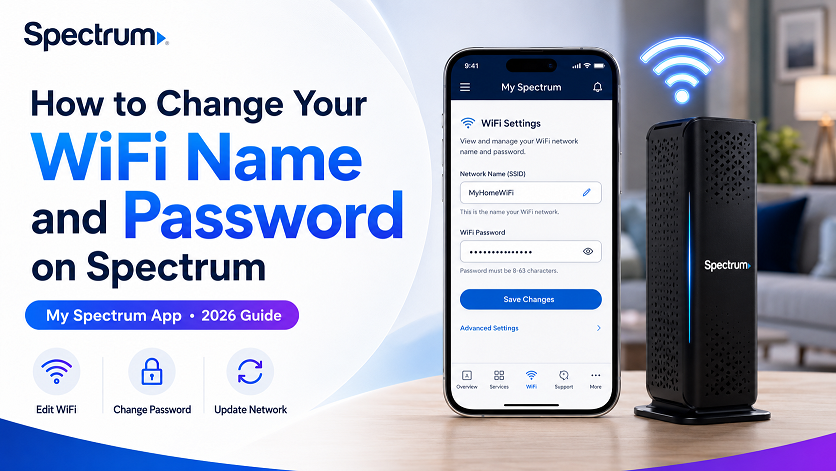
How to Change Your WiFi Name and Password on Spectrum (My Spectrum App) — 2026 Guide
To change your WiFi name or password on Spectrum, open the My Spectrum app, tap Services, select your network under “Your Spectrum Network,” update the Network Name and/or Password fields, and tap Save. You can also do this at spectrum.net under Services → Internet. This requires Spectrum’s Advanced WiFi equipment — if you’re using your own router, you’ll need to log into its admin page instead. Saving the change disconnects every device on your network; each one will need to be reconnected with the new credentials.
Whether you’re locking down your network after noticing an unfamiliar device, getting ready to hand out WiFi access to new roommates, or just doing routine security housekeeping, changing your Spectrum WiFi name and password is a five-minute task — as long as you’re using the right tool and you know what to expect afterward.
The process is straightforward if you have Spectrum’s Advanced WiFi equipment, which is the case for most current customers. If you’re using your own modem and router, the steps look different, and the My Spectrum app may not be much help at all. This guide covers both situations, plus what happens to every device in your home the moment you hit Save.
What You Need Before You Start
Before opening the app, it helps to know which path applies to your setup:
- Your Spectrum account login — the same username and password you use for spectrum.net or to pay your bill.
- Spectrum Advanced WiFi equipment — if your router and modem were provided by Spectrum (most current installs include this), you can make changes directly in the My Spectrum app or at spectrum.net.
- Your own router — if you’re using a third-party modem/router instead of Spectrum’s equipment, the My Spectrum app likely won’t show network management options, and you’ll need to access your router’s own admin page (see the dedicated section below).
- A few spare minutes — every device on your network disconnects the moment you save a new name or password, so plan to reconnect your most-used devices right after.
Not Sure Which Equipment You Have?
Open the My Spectrum app and go to Services. If you see “Your Spectrum Network” with options to view or edit your WiFi name and password, you have Advanced WiFi and can follow the app steps below. If that section is missing entirely, you’re likely using your own equipment — skip ahead to the router admin panel section.
How to Change It in the My Spectrum App (Step by Step)
Open the My Spectrum App and Log In
Launch the app and sign in with your Spectrum username and password if you aren’t already logged in.
Tap “Services” in the Bottom Menu
The Services tab is where all of your account’s connected equipment and network settings live.
Select Your Network Under “Your Spectrum Network”
Tap the network you want to edit. If you have multiple networks set up (for example, a main network and a separate guest network), make sure you select the correct one.
Update the Network Name and/or Password
Edit the Network Name (SSID) field, the Password field, or both. You don’t have to change both at once — updating just the password while keeping the same network name is common if you want your devices to reconnect more easily afterward.
Tap “Save”
The change applies almost immediately. Every device currently connected to that network will disconnect and show your new network name (if changed) in its list of available WiFi networks.
How to Change It via Spectrum.net
If you’d rather use a computer, or the app isn’t cooperating, the web version works the same way:
Log In at Spectrum.net
Go to spectrum.net and sign in with your Spectrum username and password.
Go to Services → Internet
Your WiFi network information will be displayed on this page, including your current network name.
Click the Arrow Next to Your WiFi Information
This opens the WiFi settings panel where the Network Name and Password fields are editable.
Enter Your New Details and Save
Type your new network name and/or password, then click Save. As with the app, this disconnects every connected device immediately.
What Happens After You Save — Reconnecting Devices
Whether you changed the name, the password, or both, here’s what to expect immediately afterward:
| What You Changed | What Happens to Devices | Reconnection Effort |
|---|---|---|
| Password only (same network name) | All devices disconnect; the network still appears in their WiFi lists | Low — most devices prompt for the new password and reconnect quickly |
| Network name only (same password) | All devices disconnect; the old network name disappears and a new one appears | Medium — devices need to find and select the new network name, then enter the existing password |
| Both name and password | All devices disconnect; nothing about the old network remains | Highest — every device needs to find the new network and enter new credentials from scratch |
Smart Home Devices Need Extra Attention
Phones, laptops, and tablets generally just need you to select the new network and type the password once. Smart home devices — cameras, smart plugs, locks, sensors, and some thermostats — often store WiFi credentials internally and may not prompt you at all. Many will need to be re-paired through their own manufacturer app rather than reconnecting automatically. If you have a lot of these, consider keeping the network name the same and changing only the password, which some (but not all) smart devices can pick up more gracefully.
Also Managing an Xfinity Network?
If your household has a second Xfinity connection, the equivalent process — including device management and security — works a bit differently. Here’s the full breakdown.
Don’t Have Advanced WiFi? Using the Router Admin Panel
If the My Spectrum app doesn’t show a “Your Spectrum Network” section, you’re most likely using your own modem and router rather than Spectrum’s Advanced WiFi equipment. In that case, network settings are managed directly through your router, not through Spectrum’s app or account.
Find Your Router’s Admin Address
Check the label on the back or bottom of your router for an IP address — commonly something like 192.168.0.1 or 192.168.1.1. Type this into a web browser’s address bar while connected to your home WiFi.
Log In With the Admin Credentials
Use the admin username and password printed on the router label (often “admin” / “admin” or “admin” / “password” by default — change these too if you haven’t already). This is different from your Spectrum account login.
Find the Wireless or WiFi Settings Section
Look for a menu labeled “Wireless,” “WiFi,” or “Network.” Depending on your router, you may see separate sections for the 2.4GHz and 5GHz bands.
Update the SSID and Password Fields, Then Apply
Edit the network name (SSID) and/or password for each band shown. After saving, most routers require a restart — look for an “Apply” or “Save” button, followed by a “Restart” option under a Maintenance or System menu if changes don’t take effect immediately.
Choosing a Strong New Name and Password
Since you’re already in the settings, it’s worth spending an extra minute making sure your new credentials are actually more secure than what you’re replacing — not just different.
✅ Good Practices
- Use a password of at least 12–16 characters mixing letters, numbers, and symbols
- Enable WPA3 security if your router supports it (most Advanced WiFi routers do)
- Avoid using your address, name, or apartment number in the network name
- Use a passphrase you can type easily on smart devices with no keyboard
- Write the new credentials down somewhere before you save — you’ll need them immediately for reconnection
⚠️ Avoid These
- Reusing a password you use for other accounts
- Simple sequences like “12345678” or “password1”
- Network names that broadcast your identity or address publicly
- Special characters that some older smart home devices can’t type or recognize (stick to letters, numbers, and common symbols like – and _)
Troubleshooting: Save Not Working / Devices Won’t Reconnect
| Problem | Likely Cause | Fix |
|---|---|---|
| “Save” button does nothing or shows an error | Outdated app version, or temporary sync issue with your account | Update the My Spectrum app, restart it, or try the same change at spectrum.net instead |
| New password doesn’t seem to apply | Router hasn’t finished applying the change yet | Wait 1–2 minutes, then try reconnecting a device; restart the router if it’s still not working after several minutes |
| Devices show the old network name after the change | Device cached the old network and hasn’t refreshed its WiFi scan | On the device, forget/remove the old network from its WiFi list, then scan again and select the new one |
| Smart home device won’t reconnect at all | Device stores credentials internally and doesn’t prompt for new ones | Re-pair the device through its manufacturer’s app, which typically includes a “reconnect to WiFi” or re-setup option |
| Lost internet entirely after the change | Router restart in progress | Give the router 2–5 minutes to fully restart and rebroadcast the new network before troubleshooting further |
Frequently Asked Questions
Do I need Spectrum Advanced WiFi to change my WiFi name and password in the app?
To change your WiFi network name and password directly inside the My Spectrum app, you generally need to be using Spectrum-provided equipment, particularly an Advanced WiFi router. If you’re using your own third-party modem or router, the My Spectrum app may not show network management options at all, and you’ll need to log into your router’s own admin page (commonly at an address like 192.168.0.1 or 192.168.1.1) to make changes there instead.
Will changing my WiFi password disconnect all my devices?
Yes. As soon as you save a new network name or password, every device currently connected to that WiFi network — phones, laptops, smart TVs, cameras, thermostats, smart plugs — loses its connection immediately. Each device will need to be reconnected manually using the new credentials. It’s a good idea to make this change when you’re home and have a few minutes to reconnect your most important devices first.
Can I set different names for the 2.4GHz and 5GHz networks on Spectrum?
By default, most Spectrum Advanced WiFi routers broadcast a single combined network name that automatically directs each device to the best available band (2.4GHz or 5GHz). Some routers and firmware versions allow you to split this into separate named networks for each band through advanced settings, which can be useful for older smart home devices that only support 2.4GHz and sometimes have trouble auto-connecting to a combined network. If you don’t see an option to split bands in the My Spectrum app, this typically requires the router’s advanced settings or web admin page.
How do I change my Spectrum WiFi password without the app?
You can change your WiFi name and password by logging into your account at spectrum.net, going to Services, selecting Internet, and clicking the arrow next to your WiFi information to open network settings. From there, the steps mirror the app: update the Network Name and/or Password fields and save. If you’re using your own router rather than Spectrum equipment, you’ll instead need to access your router’s local admin page directly through a web browser.
What if the Save button isn’t working in the My Spectrum app?
First, make sure you’re running the latest version of the My Spectrum app, since network management features are updated periodically. Check that your phone has an active internet connection (WiFi or cellular both work for the app itself). If the Save button appears unresponsive, try closing and reopening the app, or restart your phone. If it still doesn’t work, try making the change through spectrum.net on a computer instead — occasionally one platform reflects a recent account or equipment change before the other does.
Is there a limit to how often I can change my WiFi password?
There’s no published limit on how frequently you can change your Spectrum WiFi name or password — you can do it as often as you like. That said, because every change disconnects all devices on your network, it’s worth treating it as an occasional maintenance task (for example, after a guest leaves, if you suspect unauthorized access, or as part of periodic security hygiene) rather than something to do casually, simply because of the reconnection effort involved.
After a factory reset, should I keep the same WiFi name and password or change it?
After a factory reset, Spectrum’s equipment typically prompts you to set a new WiFi network name and password. If your priority is getting all your existing devices back online with minimal effort, you can set the name and password back to what they were before — devices will often reconnect automatically. If the reset was prompted by a security concern, or you simply want a fresh start, this is also a good opportunity to choose new, stronger credentials, understanding that every device will then need to be reconnected manually.