
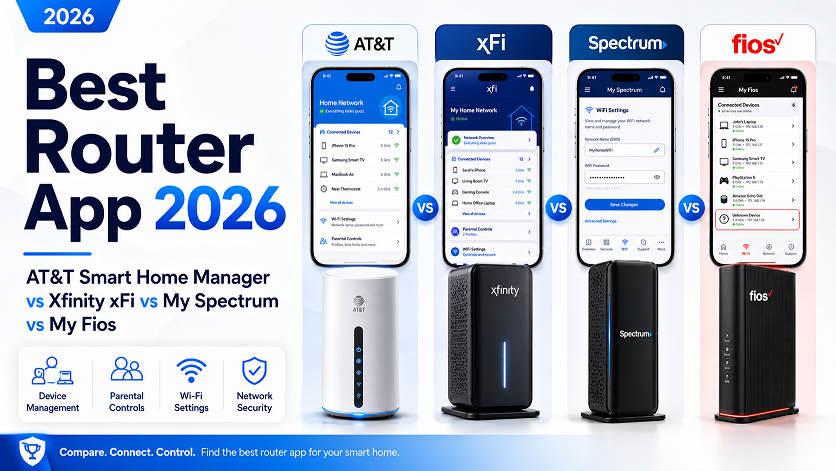
Best Router App 2026: AT&T Smart Home Manager vs Xfinity xFi vs My Spectrum vs My Fios
All four major ISPs now offer a free app for managing your home WiFi, but the depth varies. Xfinity xFi has the most complete free feature set — distinct Pause, Forget, and Block options, free Advanced Security with a compatible gateway, and detailed parental profiles. AT&T Smart Home Manager is close behind, with per-device pausing, blocking unknown devices, family profiles, and ActiveArmor security (tied to the BGW320 gateway). My Spectrum is simpler — Pause is the main tool, with Security Shield included on Advanced WiFi. Verizon’s ecosystem is mid-transition between My Fios and the newer Verizon Home app, which adds the most flexible network segmentation (a separate IoT network) on supported routers. In every case, the deciding factor is your gateway/router model, not which ISP you’re with — switching providers just for the app isn’t a good reason on its own.
Over the past several years, every major U.S. internet provider has shipped a free companion app that turns your phone into a control panel for your home WiFi. The pitch is basically identical across AT&T, Xfinity, Spectrum, and Verizon: see your connected devices, manage parental controls, change your WiFi password, and get some flavor of built-in security — all without calling support or logging into a router’s admin page.
What’s less identical is how each provider actually implements that pitch. The terminology differs (is it “Pause,” “Forget,” or “Block”?), the security features are tied to specific hardware, and the parental control depth ranges from genuinely robust to fairly basic. This guide pulls together everything from our deep-dive guides on each ISP’s app into one side-by-side comparison — and points you to the full walkthrough for whichever provider you actually have.
Quick Comparison Table
| Feature | AT&T Smart Home Manager | Xfinity xFi | My Spectrum | My Fios / Verizon Home |
|---|---|---|---|---|
| Connected device list & rename | ✅ | ✅ | ✅ | ✅ |
| Pause individual device | ✅ Until manually unpaused | ✅ | ✅ “Until I Unpause” | ✅ |
| Block unknown/unwanted device | ✅ Documented feature | ✅ Dedicated “Block” | ⚠️ No separate block — pause + password change | ⚠️ Not clearly documented |
| Family profiles / downtime schedules | ✅ | ✅ Up to 30 schedules/profile | ✅ Device Groups + Pause Schedules | ⚠️ Per-device pause only |
| Free built-in network security | ⚠️ ActiveArmor — requires BGW320 gateway | ✅ Advanced Security — free with Gateway (router mode) | ✅ Security Shield — included with Advanced WiFi | ⚠️ Not prominently documented |
| Guest network | ✅ | ✅ | ⚠️ Not confirmed in app docs reviewed | ✅ |
| Dedicated IoT/smart-home network | ⚠️ Not confirmed | ⚠️ Not confirmed | ⚠️ Not confirmed | ✅ Verizon Home, supported routers |
| WiFi name/password change | ✅ | ✅ | ✅ | ✅ |
| Speed test | ✅ | ✅ | ⚠️ Not confirmed | ⚠️ Not confirmed |
| Requires specific gateway for full features | Yes — compatible AT&T Gateway (BGW320 for ActiveArmor) | Yes — Xfinity Gateway in router mode | Yes — Advanced WiFi equipment | Yes — current Fios Home Router |
Items marked “not confirmed” reflect what’s clearly documented in each provider’s current public app materials at the time of writing — not necessarily that the feature is absent. ISP apps update frequently and feature availability can depend on your specific router model and region. If a feature here matters to you, check directly in your app before making any decisions based on this table.
Device Management Compared: Pause, Forget, Block
This is where the four apps diverge the most — and where the terminology can be genuinely confusing if you’ve used more than one provider.
| Provider | Main Tool | How “Permanent” Removal Works |
|---|---|---|
| AT&T | Pause (per device or profile, until manually unpaused) | App documentation describes a “block access to unknown devices” capability alongside pausing |
| Xfinity | Three distinct actions: Pause, Forget, Block | Block denies network access at the hardware level, even with the correct password, until manually unblocked |
| Spectrum | Pause / Unpause, including “Until I Unpause” | No separate forget/block — pausing indefinitely plus a WiFi password change is the recommended combination |
| Verizon | Per-device Pause toggle | A WiFi password change is the most clearly documented permanent option |
The practical takeaway: across all four providers, a WiFi password change is the one action that’s guaranteed to work the same way everywhere — it disconnects every device and only lets back in devices with the new credentials. Pause, Forget, and Block are useful day-to-day tools, but they vary enough between providers that it’s worth reading the dedicated guide for your specific ISP (linked in the series index below) rather than assuming your old provider’s terminology carries over.
Parental Controls & Screen Time Compared
If parental controls are your priority, the picture looks like this:
- AT&T Smart Home Manager supports creating profiles per family member, setting downtime schedules, and pausing access by device or by an entire profile — useful for enforcing “no internet after 9pm” rules household-wide.
- Xfinity xFi goes a step further with “People” profiles that support Bedtime Mode, up to 30 screen-time schedules per profile, age-based content filter tiers, and real-time alerts when a new device joins.
- My Spectrum achieves similar outcomes through Device Groups (group a child’s devices together) combined with Pause Schedules (recurring automatic pause windows) — functionally comparable, but framed more around “devices and groups” than “family members.”
- Verizon’s apps document per-device pausing clearly, but a dedicated “family profiles with schedules” framing similar to AT&T or Xfinity isn’t as prominently documented in current materials — if this is your priority on Fios, check directly in your app.
Content Filtering Often Needs a Security Add-On
Across providers, blocking categories of content (not just pausing devices entirely) tends to be tied to each provider’s security feature rather than the base parental controls — AT&T’s content filters require ActiveArmor (BGW320 gateway), and Xfinity’s profile-level content filters are part of the xFi parental controls suite. If category-based filtering matters to you, check which security tier your account and gateway combination actually includes.
Free Network Security Compared
Three of the four providers offer a named, no-extra-cost network security layer — but each is tied to specific hardware:
- AT&T ActiveArmor — device and network protection plus content filters by category, but requires the BGW320 gateway model specifically.
- Xfinity xFi Advanced Security — free for any customer using an Xfinity Gateway in router mode (not Bridge Mode); blocks malicious sites and sends real-time alerts.
- Spectrum Security Shield — included with Advanced WiFi equipment; automatically blocks known malicious sites, phishing attempts, and cyberattacks.
- Verizon — current app materials don’t prominently surface an equivalent named, app-integrated security feature. If network-level security is a priority on Fios, it’s worth asking Verizon support directly what’s included with your specific router.
Guest & IoT Network Support
For households with a lot of smart home devices, the ability to put them on a separate network from your everyday devices is genuinely useful — both for organization and as a security boundary.
- AT&T and Xfinity both document straightforward guest WiFi networks, isolated from your main devices.
- Spectrum’s Advanced WiFi documentation reviewed for this series didn’t explicitly confirm a guest network toggle, though this is a common feature across most modern ISP gateways — check your app directly.
- Verizon stands out here: beyond a standard guest network in My Fios, the newer Verizon Home app’s Network Control section can enable a dedicated IoT network on supported routers — giving smart plugs, cameras, and sensors their own SSID separate from both your main and guest networks.
WiFi Name & Password Changes — All Four ISPs
This is the one area where all four providers behave almost identically in practice, even if the exact menu paths differ:
- Open your provider’s app and find the network settings section (usually under “Internet,” “Services,” or “My Networks”).
- Edit the Network Name (SSID) and/or Password fields.
- Save — every device on that network disconnects immediately.
- Reconnect your devices with the new credentials. Smart home devices often need to be re-paired through their own apps rather than reconnecting automatically.
For the most detailed walkthrough of this process — including what happens with separate 2.4GHz/5GHz networks and troubleshooting a “Save” button that won’t respond — see our Spectrum WiFi name and password guide, which covers the general process in the most depth.
Not Sure Which Guide to Read?
Jump straight to the full walkthrough for your provider — Xfinity xFi covers the most ground if you want to see what a fully-featured ISP app looks like.
Should You Switch ISPs for a Better App?
Probably not — at least not for this reason alone. A few things worth keeping in mind:
- Most “missing” features are gateway-dependent, not ISP-dependent. If your AT&T account doesn’t have ActiveArmor, the fix is usually the BGW320 gateway, not switching to Xfinity. If your Spectrum account doesn’t show certain options, it’s often about whether you’re using Advanced WiFi equipment.
- App quality changes over time. Verizon’s transition from My Fios to Verizon Home shows how quickly these apps evolve — a feature gap today may close with the next update.
- The bigger factors are still bigger. Speed, price, reliability, and what’s actually available at your address will affect your daily experience far more than whether “Forget” and “Block” are separate buttons.
If you’re evaluating a switch for other reasons and the app happens to be a tiebreaker, this comparison should at least tell you what to expect — but it’s rarely worth being the deciding factor on its own.
Full Series Index — Every Guide in This Cluster
Here’s the complete set of guides this comparison is built on, grouped by provider:
📞 AT&T
📡 Xfinity
📶 Spectrum
Frequently Asked Questions
Can I switch ISPs just to get a better router app?
It’s generally not a good enough reason on its own. App features are a nice-to-have layered on top of much bigger factors — price, speed, reliability, contract terms, and what’s actually available at your address. Most of the “missing” features people notice in their current ISP’s app are tied to their specific gateway or router model rather than the ISP itself, so upgrading or renting the right equipment from your current provider often closes the gap without the hassle of switching providers entirely.
Which ISP app has the best parental controls?
Based on documented features, Xfinity xFi and AT&T Smart Home Manager offer the most complete parental control sets: both support family profiles, downtime/bedtime schedules, and pausing access by device or by profile, with content filtering available through their respective security add-ons (xFi Advanced Security and AT&T ActiveArmor, the latter tied to the BGW320 gateway). My Spectrum achieves similar results through Device Groups and Pause Schedules, though it’s framed less explicitly around “family profiles.” Verizon’s apps offer per-device pausing, but family-profile-style scheduling is less prominently documented in current app materials — worth checking directly in your app if this is a priority.
Which ISP includes free network security in its app?
Three of the four offer a named, no-extra-cost network security feature, each tied to specific equipment: Xfinity’s xFi Advanced Security is free with an Xfinity Gateway in router mode; Spectrum’s Security Shield is included with Advanced WiFi equipment and blocks malicious sites and cyberattacks; and AT&T’s ActiveArmor provides device and network protection plus content filters, but is tied to the BGW320 gateway model specifically. Verizon’s current app materials don’t prominently document an equivalent named security feature, so if this matters to you on Fios, it’s worth confirming directly with Verizon support for your specific router.
Do I need a specific gateway or router model for these apps to work fully?
Yes, in all four cases. Xfinity xFi requires an Xfinity Gateway in router mode (not Bridge Mode) for the device list, parental controls, and Advanced Security. My Spectrum requires Spectrum’s Advanced WiFi equipment for network management features. AT&T Smart Home Manager requires a compatible AT&T Wi-Fi Gateway, with ActiveArmor specifically requiring the BGW320 model. Verizon’s Network Control, IoT network, and 6GHz features in Verizon Home depend on having a current-generation Fios Home Router. If you’re using your own third-party modem or router with any of these providers, expect most of these app features to be unavailable.
Which app is easiest to use for someone non-technical?
My Spectrum’s simpler model — Pause as the primary control, with straightforward WiFi name/password editing — tends to be the least confusing for non-technical users precisely because it has fewer overlapping options. Xfinity xFi and AT&T Smart Home Manager offer more granular controls (multiple device actions, detailed profiles) which are powerful but have a slightly steeper learning curve. Verizon’s situation is currently the most potentially confusing simply because of the My Fios / Verizon Home app transition — once settled into one app, the core flows are comparably simple to the others.
If I use my own router instead of my ISP’s equipment, will any of these apps still work?
All four apps will generally still let you log in, view your account, check data usage, and pay your bill. However, the network-level features covered in this series — device lists, pausing, parental controls, guest/IoT networks, and built-in security — are tied to the ISP’s own gateway or router hardware in router mode, not to your account in the abstract. If you’re using a third-party router with any of these providers, expect these features to be missing or greyed out, and manage your network instead through your own router’s admin page.
How often should I change my WiFi password regardless of which ISP I have?
There’s no universal rule, but a reasonable approach is to change it whenever your circumstances change — after a roommate or guest with access moves out, if you notice an unrecognized device on your network, or roughly once or twice a year as routine maintenance. Across AT&T, Xfinity, Spectrum, and Verizon, changing your WiFi name or password disconnects every device on the network, so it’s worth doing when you have a few minutes to reconnect your household’s devices afterward.