
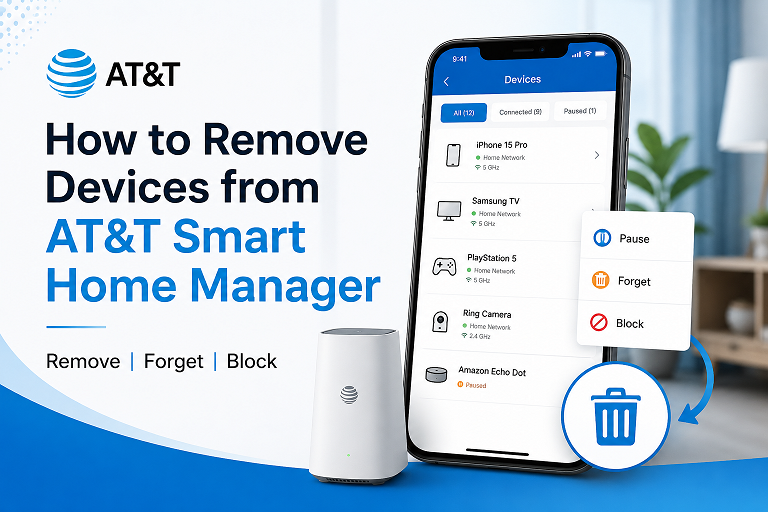
How to Remove Devices from AT&T Smart Home Manager (2026): Pause, Block & Delete Explained
To remove a device from AT&T Smart Home Manager, open the app, go to Profiles & devices or Network, select the device, and use the available option to block, pause, rename, or remove it from a profile. AT&T does not always show a simple “delete” button for every connected device. If the device is unknown or keeps coming back, the safest fix is to block the device and change your AT&T WiFi password.
Many AT&T Internet customers open Smart Home Manager and suddenly see a device they do not recognize: an old phone, a smart TV, a printer, a gaming console, a camera, a random Android device, or something simply labeled Unknown. Naturally, the first question is: How do I remove this device from AT&T Smart Home Manager?
The answer is slightly confusing because Smart Home Manager does not always work like a contact list where every item has a clean “delete” button. In many cases, the app is showing devices detected by your AT&T Wi-Fi Gateway. That means the correct action may be to block the device, pause internet access, rename it, remove it from a profile, restart the gateway, or change your WiFi password.
This 2026 guide explains the difference between removing, blocking, pausing, forgetting, and renaming devices in AT&T Smart Home Manager. It also shows what to do if an unknown device keeps returning, why old devices still appear, and how to secure your home WiFi so unwanted devices cannot reconnect.
Can You Remove Devices from AT&T Smart Home Manager?
Yes, but not always with a permanent delete button. AT&T Smart Home Manager mainly shows devices that are connected to your home WiFi or have recently connected through your AT&T Wi-Fi Gateway or All-Fi Hub. Depending on the device, your gateway, and your app version, you may see options such as:
- View device details
- Rename the device
- Add the device to a profile
- Remove the device from a profile
- Pause internet access
- Block the device from the network
- Run a device security scan if enabled
- Manage parental controls or downtime schedules
If you are looking for a “delete forever” button, you may not always find it. That does not mean you are stuck. For a device you do not trust, the best solution is usually to block it first and then change your WiFi password if it keeps returning.
Important 2026 Note
AT&T Smart Home Manager is a network management app, not a simple device deletion tool. If a device is still connected to your WiFi, the app may let you manage or block it instead of deleting it from history.
How to Remove or Block a Device in the AT&T Smart Home Manager App
Use these steps if you are using the Smart Home Manager app on iPhone or Android.
Open Smart Home Manager
Open the AT&T Smart Home Manager app and sign in with the AT&T user ID connected to your home internet account.
Go to Profiles & Devices or Network
Depending on your app version, look for Profiles & devices, Network, or Connected devices. This is where Smart Home Manager lists devices detected on your home WiFi.
Select the Device
Tap the device you want to manage. If the name is unclear, check details such as manufacturer, connection type, device icon, or last connected time.
Choose the Available Action
Use the option shown for that device: Block Device, Pause Internet, Rename, Add to Profile, or Remove from Profile. Not every device shows every option.
Change Your WiFi Password if Needed
If the device is unknown, suspicious, or keeps reconnecting, change your AT&T WiFi password. This forces devices to reconnect with the new password and removes access from anyone who only had the old password.
Best Practical Method
For a device you do not recognize, pause it first. If nobody in your home loses internet, block it. If it returns or you suspect your password was shared, change the WiFi password.
How to Remove or Block a Device from a Computer
You can also manage AT&T Smart Home Manager from a computer if you do not want to use the mobile app.
- Go to the AT&T Smart Home Manager website.
- Sign in with your AT&T account.
- Select Network.
- Choose Connected Devices.
- Select the device you want to manage.
- Use the available option to view details, edit the name, add to a profile, pause, or block.
The computer view is helpful if you want a larger screen while checking device names, comparing connected devices, or cleaning up your home network.
Remove vs Block vs Pause vs Rename: What Is the Difference?
The words can be confusing because many users say “remove” when they actually mean “stop this device from using my WiFi.” Here is the difference.
| Action | What It Does | Best For |
|---|---|---|
| Remove | May remove a device from a profile or clear it from a view if the option appears. | Cleaning up family profiles or old device organization. |
| Block | Stops a device from using your AT&T WiFi network. | Unknown devices, unwanted users, and devices you do not trust. |
| Pause | Temporarily stops internet access for a device or profile. | Kids’ devices, homework time, bedtime, dinner time, and short-term control. |
| Rename | Changes how the device appears in Smart Home Manager. | Identifying smart TVs, phones, cameras, printers, tablets, and streaming devices. |
| Remove from Profile | Takes the device out of a person’s profile but may not remove it from the network. | Fixing parental control mistakes or reorganizing household devices. |
| Change WiFi Password | Disconnects devices that do not know the new password. | The strongest fix when unknown devices keep reconnecting. |
Do Not Confuse Pause with Security
Pause is useful for screen time, but it is not always the strongest security action. If a device is truly unknown, blocking and changing the WiFi password are safer options.
Why You May Not See a Delete Button
Many users search for “delete device from Smart Home Manager” because they expect every device to have a delete option. But Smart Home Manager may not show that option for every device because it is reading what your gateway detects.
You may not see a delete button because:
- The device is currently connected to your WiFi.
- The device recently connected and is still in the gateway history.
- The app only allows block, pause, rename, or profile actions for that device.
- Your gateway model or app version has a different menu layout.
- The device is managed through a profile or parental control schedule.
- The device is connected through a third-party router or extender.
If the device is old and offline, it may disappear after the app or gateway refreshes. If it is active and unknown, do not wait for it to disappear — pause or block it, then change your WiFi password if needed.
What to Do If an Unknown Device Appears
An unknown device in AT&T Smart Home Manager can be harmless, but it should still be checked. Many common household devices show strange names because the app cannot always identify the device type correctly.
Unknown devices may actually be:
- A smart TV or streaming stick
- A child’s phone or tablet
- A work laptop
- A printer
- A WiFi camera
- A gaming console
- A smart speaker
- A thermostat
- A doorbell camera
- A smart plug or smart bulb
- A device using a private or randomized WiFi address
Safe Unknown Device Check
Check the Device Details
Look for brand, device type, connection method, last connected time, and signal information. Even partial clues can help identify the device.
Compare It with Devices in Your Home
Check smart TVs, cameras, tablets, laptops, printers, speakers, gaming consoles, thermostats, and old phones before assuming the device is an intruder.
Pause It Temporarily
Pause the device and wait. If someone in your home says their TV, phone, laptop, or camera stopped working, you have identified it.
Rename It If It Is Yours
Once identified, rename it clearly, such as “Living Room TV,” “Kitchen Echo,” “Dad iPhone,” or “Front Door Camera.”
Block It If It Is Not Yours
If nobody recognizes the device, block it. If it keeps returning or you believe your WiFi password was shared, change the WiFi password.
Security Rule
If an unknown device reconnects after being paused or blocked, treat your WiFi password as compromised. Change the password and reconnect only trusted devices.
How to Change Your AT&T WiFi Password
Changing the WiFi password is the strongest way to remove unwanted access from your AT&T home network. Blocking a device helps, but a new password makes sure only trusted devices can reconnect.
- Open the AT&T Smart Home Manager app.
- Sign in with your AT&T user ID.
- Go to your WiFi or network settings.
- Select your WiFi network name.
- Edit the WiFi password.
- Save the new password.
- Reconnect your trusted phones, laptops, TVs, cameras, printers, speakers, and smart home devices.
Before You Change the Password
Write down the new password first. After saving, many devices will disconnect immediately. Smart TVs, cameras, thermostats, smart plugs, printers, and speakers may need to be reconnected one by one.
Best WiFi Password Tips for 2026
- Use at least 14 characters if possible.
- Mix words, numbers, and symbols.
- Do not use your phone number, address, pet name, or family name.
- Do not reuse your email or banking password.
- Do not share your main WiFi password with every guest.
- Use a guest network if your gateway supports it.
For deeper smart home protection, read our full guide: How to Secure Your Smart Home Against Hacking.
Why Old Devices Still Show in Smart Home Manager
Old devices can remain visible even after they are no longer actively using your WiFi. This does not always mean they are still connected.
Common reasons old devices still show include:
- The device connected recently and remains in history.
- The Smart Home Manager app has not refreshed.
- The AT&T gateway has cached the device record.
- The device is offline but still remembered.
- The same device changed its name after an update.
- The device is assigned to a profile.
- A phone or tablet is using a randomized WiFi address.
If the device is offline and does not have internet access, it may not be a security problem. But if it returns as active and you do not recognize it, pause or block it and consider changing your WiFi password.
Why the Same Phone Appears Twice
A common Smart Home Manager problem is seeing the same phone appear twice — once with the normal name and once as an unknown device. This often happens because modern phones use private or randomized WiFi addresses.
Private WiFi address settings are designed to improve privacy, but they can confuse router apps. When the phone changes its WiFi identifier, Smart Home Manager may think it is a new device.
| Device Type | Why It May Appear as Unknown | What to Do |
|---|---|---|
| iPhone or iPad | Private WiFi Address enabled | Check the device’s WiFi settings and rename it in Smart Home Manager. |
| Android phone | Randomized MAC address enabled | Compare connection time and pause the device briefly to identify it. |
| Smart TV | Manufacturer name appears instead of TV name | Rename it as Living Room TV, Bedroom TV, etc. |
| Printer | Shows model number or generic manufacturer | Print a network page or check the printer app for confirmation. |
| Smart plug/camera | Uses chip or module name | Turn it off briefly and refresh Smart Home Manager. |
How to Keep Unknown Devices Off Your AT&T WiFi
Removing a device once is good. Keeping unwanted devices away permanently is better. Use these steps to protect your AT&T home network.
A weak or shared WiFi password is the most common reason unwanted devices join a home network. Change the password if you see devices you cannot identify.
Rename devices after identifying them. Clear names like “Office Laptop,” “Kids iPad,” and “Front Door Camera” make future unknown devices easier to spot.
Add kids’ devices to profiles so you can pause internet, set downtime, and manage screen-time without affecting every device in the home.
A quick monthly review helps you find old phones, guest devices, unused smart gadgets, or unknown connections before they become a bigger issue.
If Smart Home Manager shows outdated or duplicate device data, restarting the AT&T gateway can refresh the device list and fix sync problems.
Common Problems and Fixes
| Problem | Likely Reason | Best Fix |
|---|---|---|
| No delete button appears | Smart Home Manager may only allow block, pause, rename, or profile actions | Use Block Device or change your WiFi password if the device is unknown. |
| Unknown device appears | The app cannot identify the device name, brand, or type | Pause it, check your home devices, rename it if trusted, or block it if unknown. |
| Old device keeps showing | Cached record or recently connected device | Refresh the app, restart the gateway, or wait for the list to update. |
| Same phone appears twice | Private WiFi address or randomized MAC address | Check phone WiFi privacy settings and rename the correct device. |
| Blocked device comes back | Device changed its network address or still has the WiFi password | Change your WiFi password and reconnect trusted devices only. |
| Pause does not work | Device may be on cellular data, another WiFi network, or wrong profile | Confirm the device is on your AT&T WiFi and assigned to the correct profile. |
| Smart Home Manager not updating | App cache, gateway sync issue, or outage | Update the app, sign out and back in, then restart the gateway. |
Final Verdict
The safest way to remove devices from AT&T Smart Home Manager is to first identify the device, then choose the correct action. If the device is yours, rename it or add it to the right profile. If it is a child’s device, pause it or set downtime. If it is unknown, block it. If it keeps returning, change your WiFi password.
The most important thing to remember is this: Smart Home Manager may not always show a permanent delete button. That is normal. For security, blocking the device and changing your WiFi password are usually more effective than simply trying to remove a device from the list.
New to AT&T Smart Home Manager?
Learn what the app does, how it works, and how to use its main WiFi controls.
Frequently Asked Questions
How do I remove a device from AT&T Smart Home Manager?
Open Smart Home Manager, sign in, go to Profiles & devices or Network, select the device, and use the available option to block, pause, rename, or remove it from a profile. A direct delete button may not appear for every device.
Why can’t I delete a device from Smart Home Manager?
Smart Home Manager may not offer a delete button because it shows devices detected by your AT&T gateway. If the device is connected or recently connected, you may only see options like block, pause, rename, or manage profile.
How do I block an unknown device on AT&T WiFi?
Open Smart Home Manager, go to the connected devices list, select the unknown device, and choose the block option if available. If the device keeps coming back, change your WiFi password.
Is pause the same as block in Smart Home Manager?
No. Pause is usually temporary and works well for screen-time control. Block is stronger and is meant to stop an unwanted device from using your AT&T WiFi network.
Will changing my WiFi password remove all devices?
Changing your WiFi password disconnects devices that do not know the new password. You will need to reconnect trusted phones, laptops, smart TVs, cameras, speakers, printers, and smart home devices manually.
Why does Smart Home Manager show unknown devices?
Smart Home Manager may show unknown devices when it cannot identify the device type or name. Phones with private WiFi addresses, smart TVs, printers, WiFi extenders, streaming sticks, and smart home devices can appear as unknown.
Can I remove old devices from AT&T Smart Home Manager?
Old devices may disappear after the device list refreshes, but some may stay visible for a while. If they are offline, they may not be a security issue. If they reconnect and you do not recognize them, block them or change your WiFi password.
Why does my iPhone show twice in Smart Home Manager?
Your iPhone may use a private WiFi address, which can make it appear as a new or duplicate device. Check your iPhone WiFi settings and rename the correct device in Smart Home Manager.
Can Smart Home Manager remove devices from a profile?
Yes, if the device is assigned to a profile, you can usually manage the profile and remove that device from it. This does not always block the device from WiFi; it only changes how it is grouped for controls and schedules.
Should I change my WiFi password if I see an unknown device?
If you cannot identify the device after checking your home devices, pause or block it first. If it returns or you suspect someone has your WiFi password, change the password and reconnect only trusted devices.