
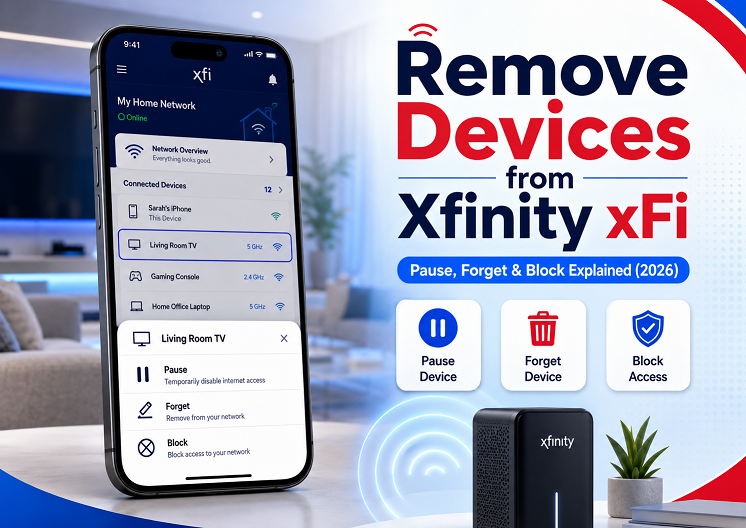
How to Remove Devices from Xfinity xFi (2026): Pause, Forget & Block Explained
To remove a device from Xfinity xFi, open the app, go to Connect → Devices, select the device, and choose Pause, Forget, or Block. Pause temporarily cuts off internet access but keeps the device saved. Forget removes it from your visible list — but only after it has fully disconnected, and it can reappear if it still knows your WiFi password. Block is the strongest option: it permanently denies that device network access, even if it has the correct password. If a device won’t disconnect or keeps reappearing, the most reliable fix is changing your WiFi network name and password, which disconnects everything at once.
If you’ve opened the Xfinity app and stared at a connected devices list with 30+ entries — half of them named things like “ESP_3A2F1” or “android-7f8e2” — you’ve probably wanted to just clean house. Maybe it’s an old phone that’s been sitting in a drawer for a year, a smart plug you unplugged months ago, or a device you genuinely don’t recognize and want gone immediately.
The tricky part is that “remove” isn’t really one action in xFi — it’s three different actions (Pause, Forget, and Block) that behave very differently, and picking the wrong one is the most common reason people end up frustrated when a device “won’t go away.” This guide breaks down exactly what each option does, when to use it, and what to do when none of them seem to be working.
The 3 Ways to “Remove” a Device — and Which to Use
Before doing anything, it helps to understand that xFi gives you three separate tools, and they’re not interchangeable. Here’s the quick comparison:
| Action | Stays on Device List? | Blocks Reconnection? | Reversible? | Best For |
|---|---|---|---|---|
| Pause | Yes — stays listed | No — reconnects instantly when unpaused | Yes, anytime | Bedtime, screen-time limits, temporary troubleshooting |
| Forget | Removed — but can return | No — if it still has your password | Yes — just reconnects | Cleaning up old/inactive devices you no longer use |
| Block | Stays listed as “Blocked” | Yes — even with correct password | Yes, manually unblock | Unknown, unauthorized, or unwanted devices |
The One-Line Version
If it’s your device and you just want it offline for a while → Pause. If it’s an old device you don’t use anymore and want off your list → Forget. If it’s a device you don’t recognize and don’t want on your network ever again → Block.
How to Pause a Device (Step by Step)
Cuts off a device’s internet access immediately while keeping it saved in your network. The device shows as “Paused” rather than disappearing, and reconnects automatically — no password needed — the moment you unpause it.
Open the xFi App and Go to Devices
From the main screen, tap the “Connect” tab at the bottom, then “Devices.” You’ll see your connected and disconnected devices listed separately.
Select the Device
Tap the device you want to pause. If it’s currently offline, check the “Devices not connected” section near the bottom of the list.
Tap “Pause Device”
Choose to pause indefinitely (until you manually unpause) or for a set time. The device loses internet access immediately, including any active VPN connection — a paused device cannot establish a VPN session because it has no network access at all.
To Unpause Later
Return to Devices, select the paused device (it’ll be under “Devices not connected”), and tap “Unpause Device.” It reconnects automatically — no need to re-enter the WiFi password.
How to Forget/Remove a Device From Your List
Removes a device from your visible connected devices list — useful for tidying up entries for devices you no longer own or use. Important: this does not prevent the device from reconnecting if it still has your WiFi password. It will simply reappear on the list if it ever connects again.
Make Sure the Device Is Disconnected
This is the step that trips most people up. xFi will only let you “forget” a device once it’s no longer actively connected to your network. If the device is currently online (or appears online even after you’ve turned it off), see the “Can’t Remove Device” section below before continuing.
Open Device Details
Go to Connect → Devices, tap the device you want to remove, and open its details page.
Tap “Forget This Device”
If the device is fully disconnected, you’ll see a “Forget this device” option at the bottom of its details page. Tapping it removes the device from your list immediately.
Know What “Forget” Doesn’t Do
Forgetting only cleans up your list — it has no effect on the device’s stored WiFi credentials. If that device (or someone using it) connects to your network again in the future, it will simply show back up. For devices you want gone permanently, use Block instead.
How to Permanently Block an Unknown Device
The strongest option in xFi. Blocking denies a specific device network access at the hardware level — even if it has your correct WiFi password — and it stays blocked until you manually remove the block. This is the right tool for a device you don’t recognize, a former roommate’s old laptop, or any device you want permanently off your network.
Identify the Device Carefully
Before blocking anything, check the device’s connection status, device type, and last-active time in its details page. Blocking the wrong device — say, your own smart TV that just hasn’t checked in recently — will cut off something you actually use. If you’re not sure what a device is, don’t block it yet; instead, turn off devices one at a time in your home and watch which one disappears from the “connected” list.
Open the Device and Choose “Block”
From Connect → Devices, select the device, open its details, and choose the option to block it. The device immediately loses access to your network and will remain listed as “Blocked” so you can find and unblock it later if needed.
Turn On xFi Advanced Security
If you’re blocking a device because you found something unfamiliar on your network, this is also a good time to make sure xFi Advanced Security is enabled (it’s free with an Xfinity Gateway in router mode). It will alert you in real time the next time a new or unrecognized device tries to connect.
“Can’t Remove Device” — Why It Still Shows as Connected
This is one of the most common complaints in the Xfinity community forums: a device is powered off, factory reset, or even physically gone — but xFi still lists it as connected, and the “Forget this device” option won’t appear because the app insists it’s still online.
| What’s Happening | Why It Happens | What to Do |
|---|---|---|
| Device shows “connected” but is powered off | The gateway hasn’t yet detected the disconnect — this can take longer than expected on some networks | Wait 15–30 minutes, then refresh the device list (pull down to refresh) |
| “Forget” option doesn’t appear | App still considers the device “connected” based on its last session | Restart your Xfinity Gateway from the app (Connect → Devices → Restart Gateway), then check again after it comes back online |
| Device reappears under a new name after being wiped/reset | The device gets a new identity on the network, but the old entry lingers | Block the old, stale entry — it’s harmless to leave a blocked “ghost” entry on the list |
| Restarting the gateway doesn’t fix it | Occasionally an app/account sync issue rather than a true network issue | Update the Xfinity app to the latest version, log out and back in, or contact Xfinity support if it persists |
If Nothing Else Works
Some users report a device staying listed as “connected” indefinitely even after multiple gateway restarts and confirmed disconnections — this appears to be a syncing quirk in the app rather than an actual security issue. If a stale entry won’t disappear, blocking it achieves the same practical outcome (no network access) even if the entry stays visible. Don’t let a cosmetic list issue distract from your actual goal, which is making sure unwanted devices can’t use your network.
The Nuclear Option: Change Your WiFi Password
If you have multiple unrecognized devices, suspect your network has been shared more widely than you intended, or just want a clean slate, changing your WiFi password is the most effective single action you can take.
Go to WiFi Settings in the App
Open the Xfinity app, go to WiFi → your network → Edit WiFi Settings (sometimes under “Network Name and Password”).
Change the Password (and Optionally the Name)
Enter a new password. You can also change the network name (SSID) for an even cleaner break, though this isn’t required.
Save — Every Device Disconnects
Saving the change immediately disconnects every device on your network, including your own phones, laptops, smart plugs, cameras, and thermostats. Only devices given the new password can reconnect.
Reconnect Your Devices One by One
Set aside 15–30 minutes to reconnect your household’s devices with the new password. Smart home gadgets (cameras, plugs, locks) sometimes need to be re-paired through their own apps rather than just re-entering a WiFi password — budget extra time for these.
When to Use This vs. Just Blocking
If it’s one or two devices, Block is faster and doesn’t disrupt your household. If you’re dealing with several unrecognized devices, suspect a shared password has spread beyond people you trust, or simply want certainty that your network is clean, changing the password is worth the reconnection effort — it’s the only action that affects every device at once, regardless of whether xFi has correctly identified each one.
New to xFi Altogether?
If you’re still getting familiar with the app, our overview guide covers the full feature set — device management, speed tests, parental controls, and xFi Advanced Security.
Removing a Device From a Family Member’s Profile
If your goal isn’t to remove a device from the network entirely, but to reassign or unassign it from a specific person’s profile (for example, a kid’s old tablet that’s been handed down), the process is slightly different from the general device list:
- Open the xFi app and go to Parental Controls (or People).
- Select the profile the device is currently assigned to.
- Open the list of devices assigned to that profile and select the device you want to change.
- Unassign it from the current profile — it returns to the general, unassigned device list, where it can be reassigned to a different profile, paused, or removed using the methods above.
This is also the place to check first if a device is being unexpectedly paused or restricted — it may simply be assigned to the wrong profile and inheriting that profile’s bedtime mode or screen-time schedule.
Frequently Asked Questions
What’s the difference between pausing and removing a device in xFi?
Pausing temporarily cuts off a device’s internet access while keeping it on your network list — it can be unpaused instantly and the device reconnects automatically. Forgetting a device removes it from your visible device list, but if the device still knows your WiFi password, it can reappear the next time it connects. Blocking is the strongest option: it denies network access to that specific device’s hardware address even if it has the correct WiFi password, and it stays blocked until you manually unblock it.
Why won’t xFi let me forget or remove a device?
The xFi app will only let you “forget” a device after it has fully disconnected from your network. If a device still appears as connected — even if it’s powered off, out of range, or has been reset — xFi may still be holding onto its last-known session. Common causes include the device briefly reconnecting in the background, the app cache not refreshing, or the gateway not yet recognizing the disconnect. Restarting your gateway from the app, waiting a few minutes, and refreshing the device list usually clears this. If a device is permanently gone and still won’t disappear after restarting the gateway, blocking it has the same practical effect even if it remains listed.
Does pausing a device block it permanently?
No. Pausing is meant to be temporary and reversible. You can pause a device indefinitely (until you manually unpause it) or on a schedule, but the device remains saved in your network and reconnects instantly once unpaused — no re-entering the WiFi password is required. If you want a device permanently denied access, use Block instead of Pause.
How do I remove an unknown device from my Xfinity WiFi?
First, block the unrecognized device directly from the Devices tab in the xFi app — this denies it network access even though it knows your password. Then, as a precaution, change your WiFi network name and password from the app’s WiFi settings. This disconnects every device on your network; only devices given the new password can reconnect, which removes any unauthorized device’s access entirely. Finally, enable xFi Advanced Security if you haven’t already, since it sends real-time alerts the next time an unrecognized device tries to join.
Will changing my WiFi password remove all devices?
Changing your WiFi name or password disconnects every device currently connected to that network. Devices won’t automatically reappear in your connected devices list until they reconnect using the new credentials. This is the most effective way to clear out unwanted or unrecognized devices at once, but it also means every legitimate device in your home — phones, laptops, smart plugs, cameras, thermostats — will need to be reconnected manually with the new password.
Can someone bypass a pause using a VPN?
No. A pause applied through xFi blocks the device at the network level before any internet traffic — including VPN traffic — can leave the home network. A paused device cannot establish a VPN connection because it has no internet access at all while paused. Cellular data and other WiFi networks are unaffected by an xFi pause, since the pause only applies to your home network.
How do I remove a device from a specific family member’s profile?
In the xFi app, go to Parental Controls or People, select the profile, and open its list of assigned devices. From there you can unassign a device from that profile (it returns to the general device list) or pause/block it directly from within the profile. This is useful if a device was assigned to the wrong family member, or if a child has been given a new device and the old one needs to be reassigned or removed.